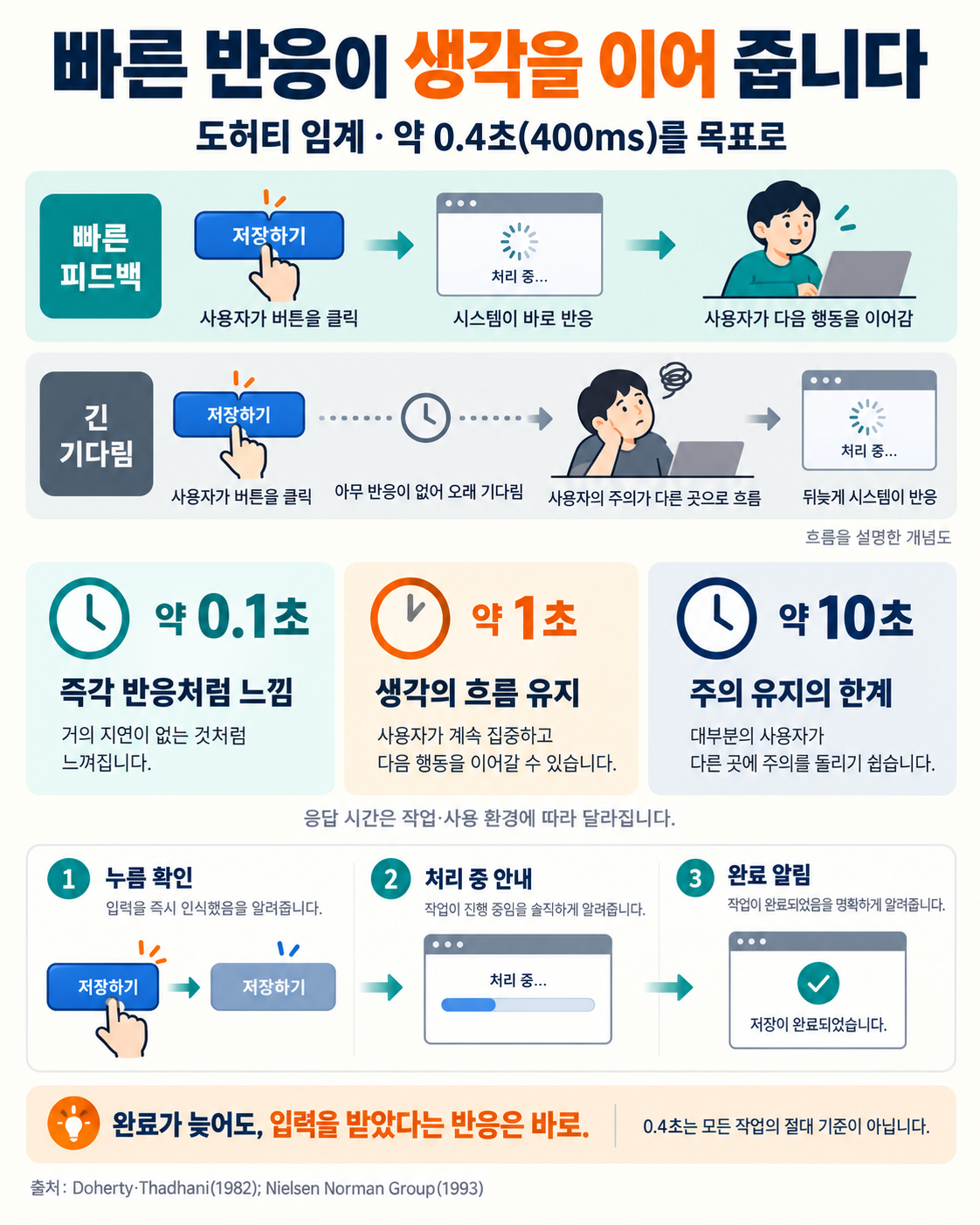
When we press a button and the screen doesn’t change right away, we press the same button again or turn our eyes to another window. Even a wait of just 1–2 seconds makes it feel as though our flow has snapped. By contrast, an app that reacts the instant we press feels comfortable, as if it fits right in the hand. The design principle that explains this difference is the “Doherty Threshold.”
Put simply, the Doherty Threshold is the principle that “when a computer responds within about 0.4 seconds (400 milliseconds), people and machines no longer wait on each other, and productivity rises sharply.” It is a concept showing that speed is not merely a technical issue but a design element that shapes users’ focus and satisfaction.
In this piece, we will look in turn at the background of the Doherty Threshold, what the 0.4-second mark means, design techniques that make waits feel shorter, and points to keep in mind when applying it.
How 0.4 Seconds Changes the User Experience
Where Did the Doherty Threshold Come From?
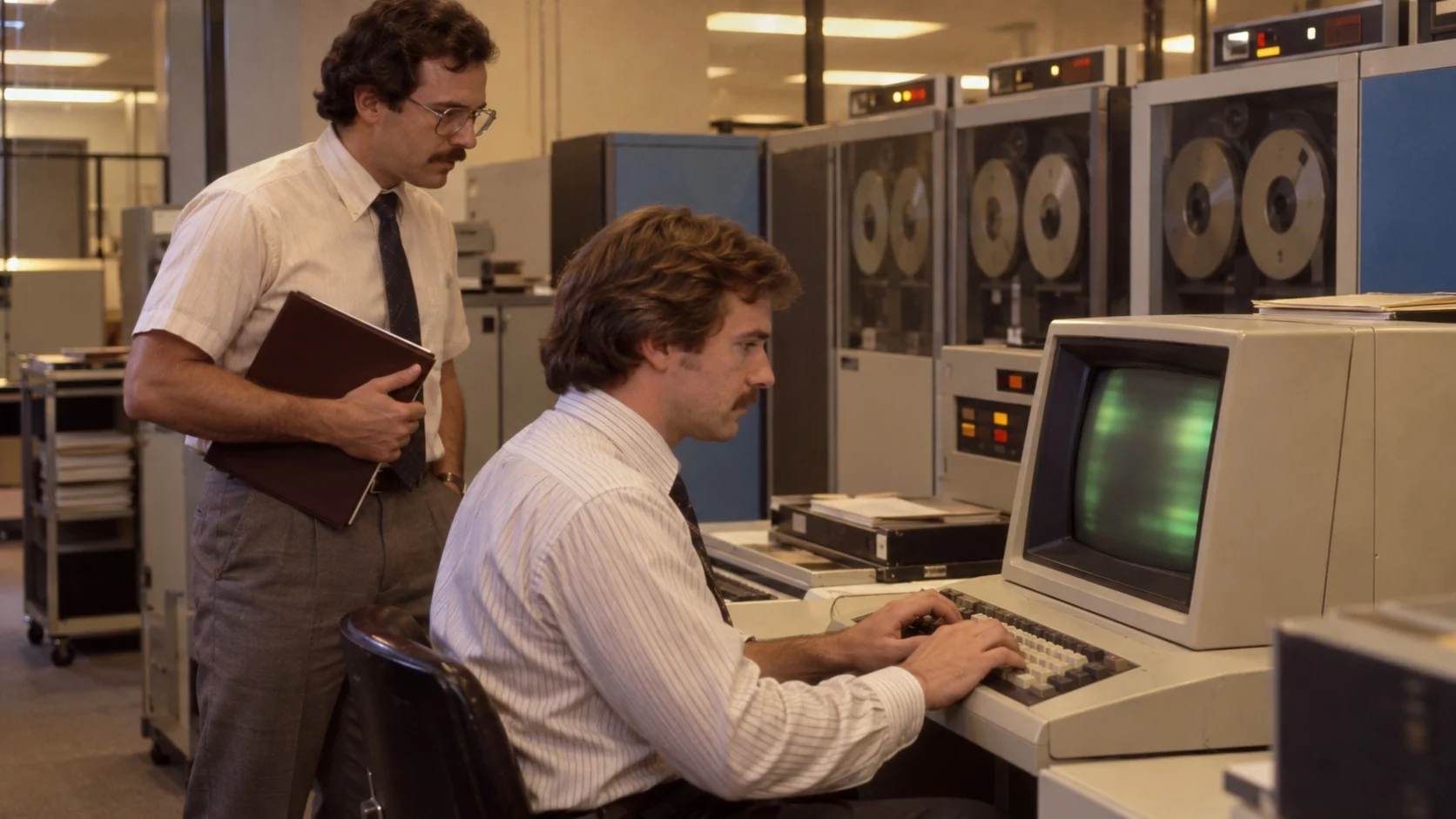
In the 1960s and ’70s, the idea that a computer response arriving within 2 seconds was good enough was widespread. In 1968, American researcher Robert B. Miller proposed about 2 seconds as one benchmark in a paper on response times in conversational tasks, and it was thought that a slight delay was fine because people were looking at the screen and thinking about their next step anyway.
The people who challenged this conventional wisdom were Walter J. Doherty and Ahrvind J. Thadhani of IBM. In November 1982 the two published a report titled “The Economic Value of Rapid Response Time,” arguing that as responses got faster, productivity rose by more than the proportion of time saved.
(1) The difference between 3 seconds and 0.3 seconds
According to data in the report, programmers handled about 180 transactions an hour when response time was 3 seconds, but when it was cut to 0.3 seconds, that number more than doubled to about 371.
(2) People speed up too
When the machine answers quickly, people don’t lose their train of thought and issue the next command right away. As the wait gets shorter, people’s own reaction speed rises along with it.
(3) The cost of a slower system
The report also described a case from the U.S. National Institutes of Health (NIH). When more concurrent users slowed responses to an average of 4 seconds, the time to finish a task grew from 32 minutes to 48 minutes, leading to the conclusion that adding equipment to make responses fast again would actually save money.
What the 0.4-Second Mark Means
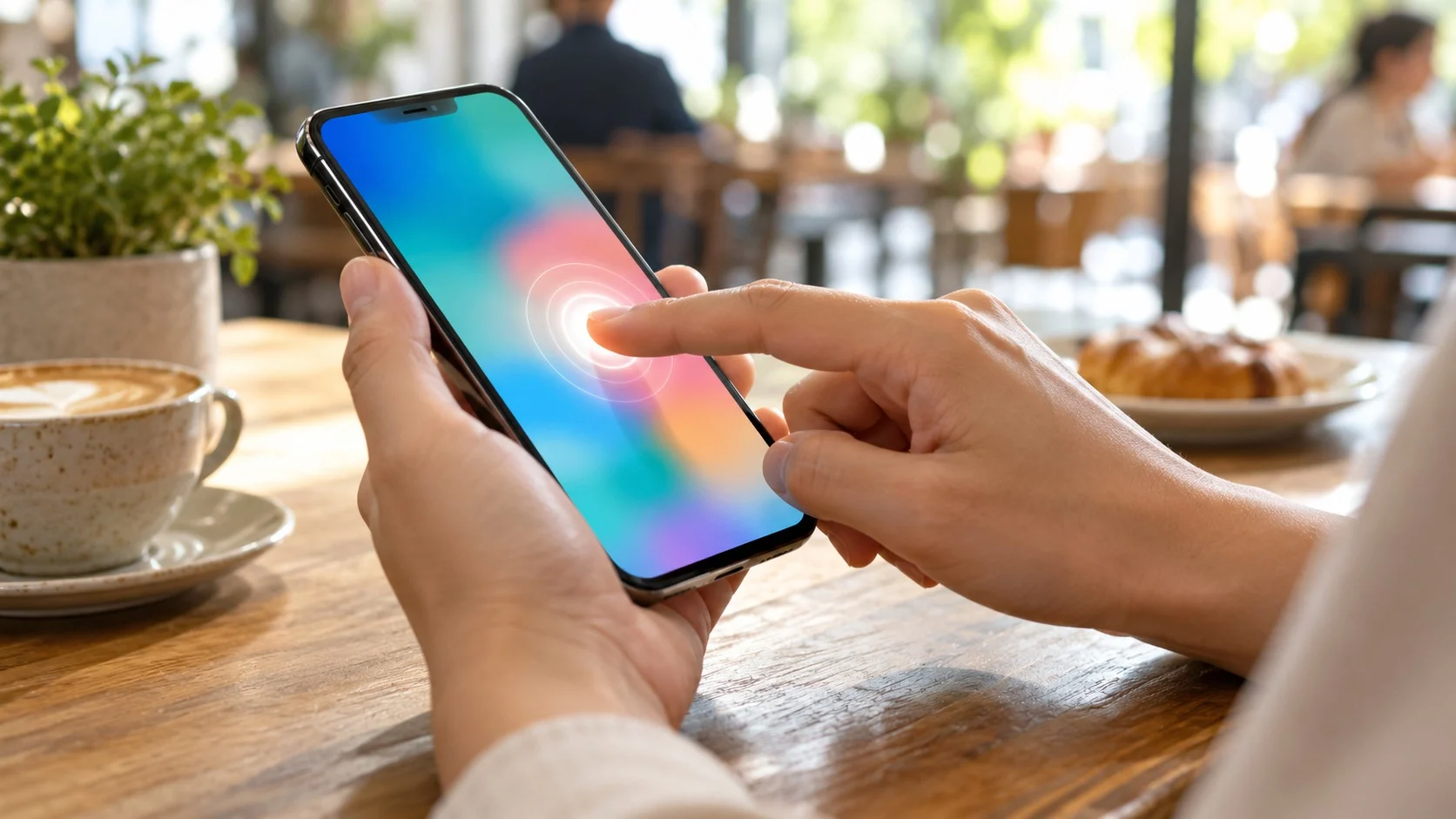
The report explained that when a response comes within 400 milliseconds, users become absorbed in their work, and once it goes past even half a second, their attention starts to drift elsewhere. Since then, the usability field has generally talked about response times in roughly three bands, as summarized by Danish-born usability expert Jakob Nielsen.
- Instantaneous Response: A response within about 0.1 seconds, where users feel they are moving things on the screen directly (e.g., a cursor that appears the moment you type a letter).
- Flow of Thought: A response within about 1 second, where users may notice the delay but their train of thought continues (e.g., a screen transition to the next page).
- Limit of Attention: Beyond about 10 seconds, users want to do something else, so a progress indicator is essential (e.g., downloading a large file).
The Doherty Threshold’s 0.4 seconds can be seen as a stricter version of the line at which the flow of thought stays unbroken. The goal is a state in which people and machines keep going without pause, as if trading lines in a conversation.
Design That Makes Waits Feel Shorter
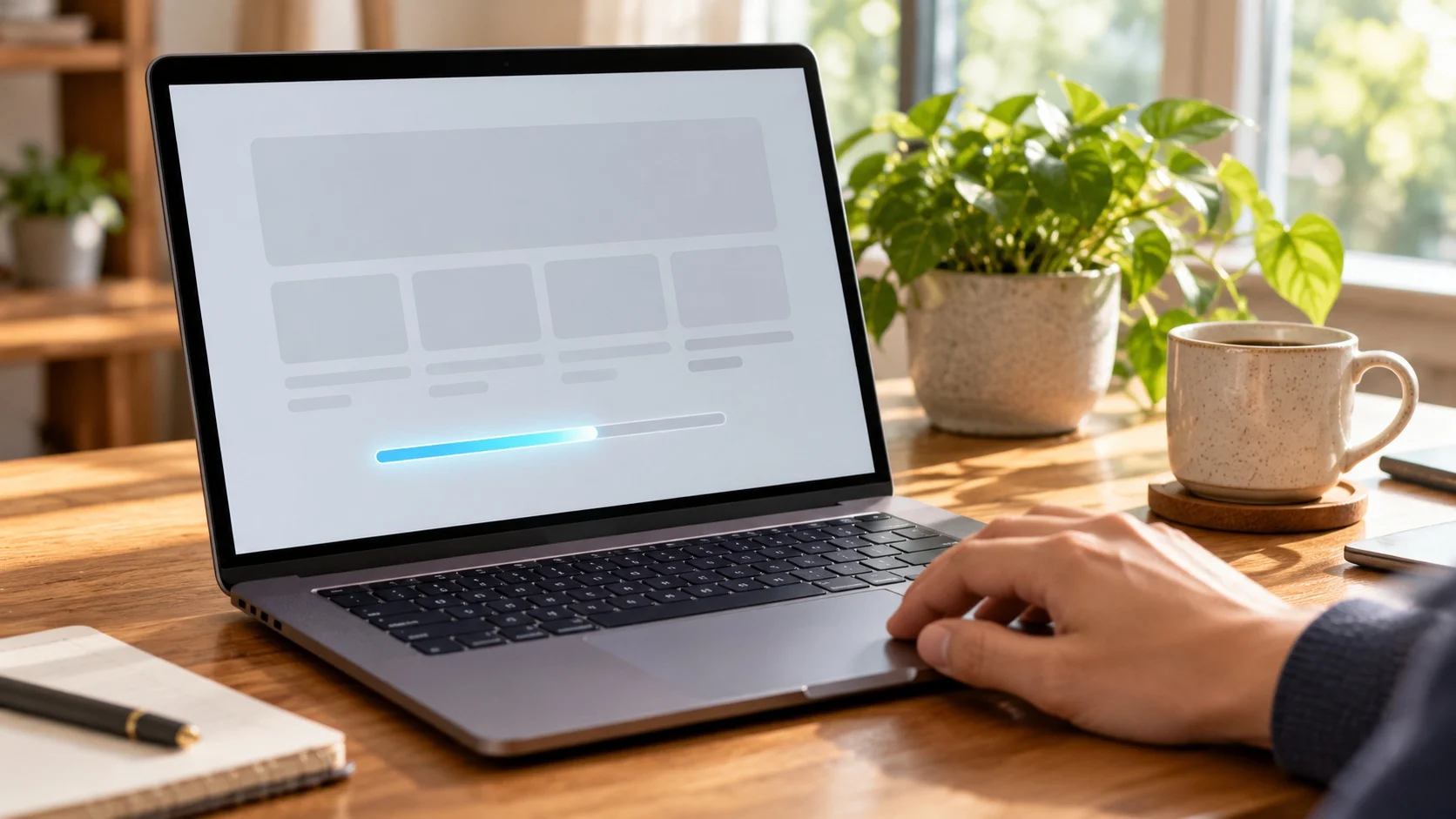
Not every task can be finished within 0.4 seconds. So designers pay as much attention to the speed users perceive, that is, perceived performance, as to actual speed.
(1) Immediately visible feedback
If a button changes color or shows a small motion before the server’s answer arrives, users are reassured that their command got through.
(2) Progress bars
In a 1985 study, American computer scientist Brad A. Myers reported that people tolerate waiting better when there is an indicator showing how far a task has progressed.
(3) Skeleton screens
Showing gray boxes where text and images will go while content loads feels less tedious than a blank screen.
(4) Prefetching
If the screen a user is likely to tap next is quietly prepared in advance, it opens almost instantly when they actually tap it.
Points to Keep in Mind When Applying It

Faster is not always better. For tasks that seem to need careful calculation, such as loan reviews or travel searches, results that come back too quickly can make users doubt whether things were properly checked.
(1) Trust that comes from visible effort
Researchers at Harvard Business School reported the “Labor Illusion”: when a system shows the work it is doing, people rate the results more highly even if the wait is a little longer.
(2) Be careful with artificial delays
Deliberately slowing things down for effect can become a device that deceives users. Actual processing should be streamlined first, and such effects should be used only to aid understanding.
(3) Consider devices and environments too
A screen that opens within 0.4 seconds on a developer’s fast computer can take several seconds on an old phone or a slow network. It’s important to make a habit of measuring speed in the environments real users actually use.
The Doherty Threshold reminds us that a span as short as 0.4 seconds changes people’s focus and how much work they get done. Good design shapes not only attractive screens but also a rhythm that keeps users from waiting.
Finding the moments when your hand hesitates in the apps you use, and shortening those waits: that is the first step toward a comfortable user experience.