
HTML is short for Hyper Text Markup Language and is one of the languages needed to create websites. Here, HTML mainly uses the concept of tags to create web documents, and this article aims to gather and organize the tags needed to create websites in one place.
There are many types of tags, making it difficult to cover each one in detail, so this article should help you get an overall sense of what tags HTML has and how they are structured.
The Concept of HTML
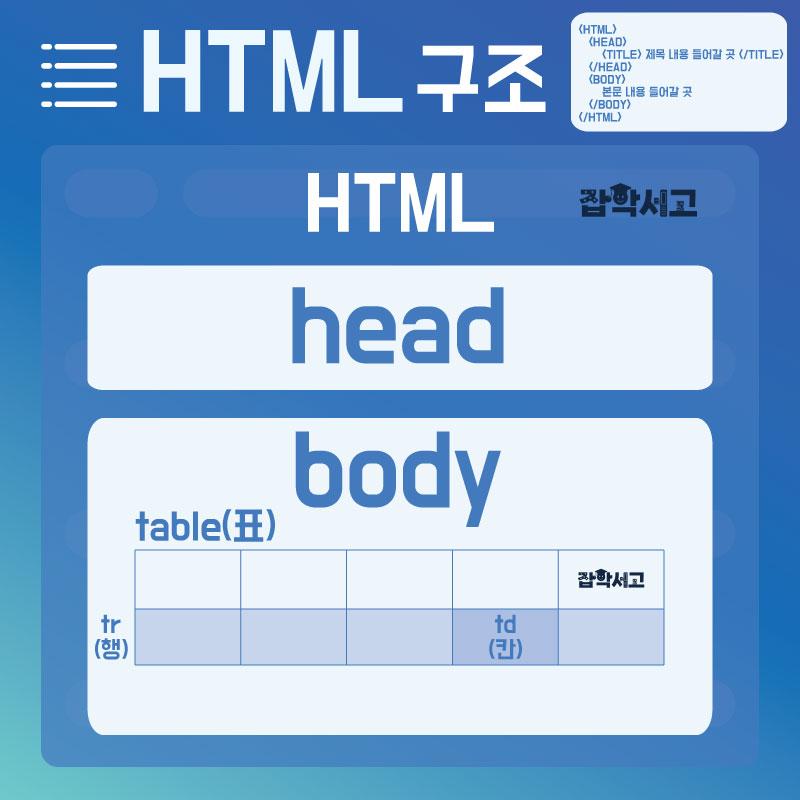 The Structure of HTML
One thing to keep in mind when using HTML tags is that, unlike general programming languages, which are sensitive to letter case, tags are not case-sensitive and are therefore relatively easy to use.
Also, because mistakes do not cause fatal errors, HTML can be regarded as a language with a fairly low level of difficulty.
All tags begin with the < symbol and end with the > symbol, and even if several spaces are entered, only a single space is applied. The basic format of a tag is <tag-name attribute="attribute-value"> ~ </tag-name>.
Following this concept, the explanations for each tag in this article will be written within the HTML tag format.
Document Tags
 Document Tags
▣ Setting document margins (topmargin, leftmargin) - <body topmargin="0" leftmargin="0"> Creating a page without margins</body>
▣ Setting the background color (bgcolor) - <body bgcolor="color"> Sets the background to the specified color. </body>
▣ Setting a background image (background) - <body background="filename.jpg"> The image file and the web document must be in the same directory. Otherwise, you must also specify the path. </body>
▣ Line breaks (br, p) -
<body>
Generally, in a word-processing document, <br>
pressing the Enter key moves to the next line, but<br>
an HTML document uses a tag called br<br>
to insert a line break. The p tag, on the other hand, <p>
can insert a line break with an extra blank line compared with a normal line break.
</body>
Text Tags
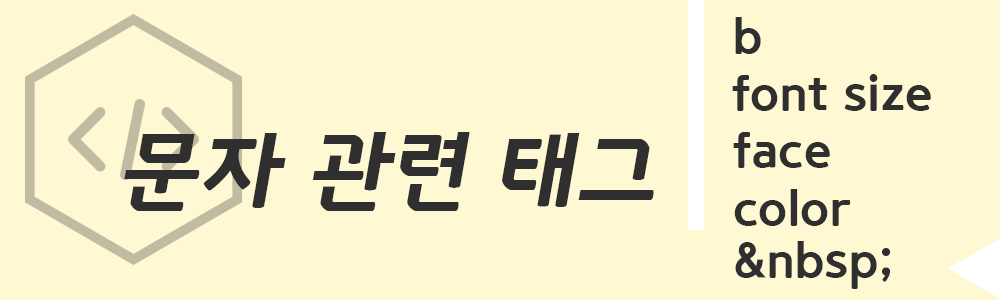 Text Tags
▣ Displaying bold text (b) - <b> Placing a b tag before text allows you to display the text in bold. </b>
▣ Adjusting the font size (font size) - <font size="1~7"> You can adjust the text size by specifying a size from 1 to 7. </font>
<font size="12pt"> You can also specify the text size in points. Point units generally allow a wider range of sizes and more precise settings></font>
▣ Changing the typeface (font - face) - <font size="2" face="Gulim"> You can specify various fonts in the typeface field, such as Gungsuh, Batang, Gulim, and Dotum.</font>
▣ Changing the text color (color) - <font size="3" color="blue"> You can change the text to your desired color by adding the color attribute inside the font tag. However, color names must be entered in English. </font>
▣ Adding spaces (  ; ) - When you want to add spaces between characters,   ; can be inserted to add a space as if you had pressed the spacebar. In HTML, however, only 1 spacebar input is applied. (For reference, p and ; must be written together without a space. In this article, entering the tag as-is would prevent it from being displayed, so a space was deliberately inserted.)
Image Tags
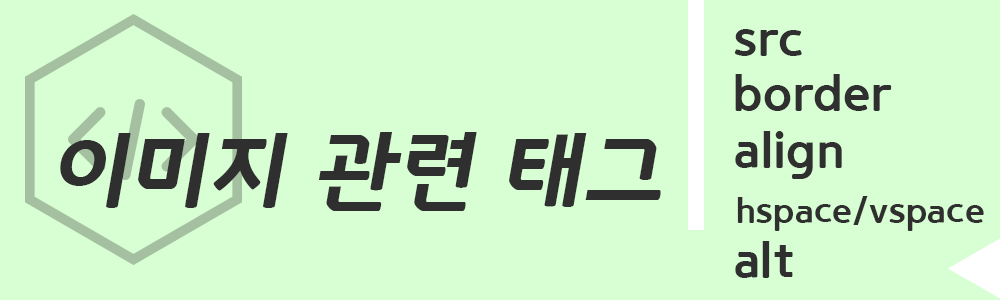 Image Tags
▣ Inserting an image (src) - <img src="image-filename.jpg"> If the web document and the image are in the same directory, enter only the filename; if they are in different directories, you must also enter the path.
▣ Displaying an image border (border) - <img src="image-filename.jpg" border="5"> You can specify the thickness of the image border with border after the image insertion tag.
▣ Aligning an image (align) - <img src="image-filename.jpg" align="left"> You can align the image by entering left (left side), right (right side), middle (center), baseline (baseline), top (top), bottom (bottom), texttop (top of the text), absmiddle (center of the text), or absbottom (bottom of the text) in the Align attribute.
▣ Adjusting image spacing (hspace, vspace) - <img src="image-filename.jpg" hspace="10" vspace="10"> You can adjust the spacing through the hspace (horizontal) and vpace (vertical) values entered after the image filename.
▣ Displaying text on mouseover (alt) - <img src="image-filename.jpg" alt="text"> If you want text to appear when the mouse is placed over an image, enter your desired text in the alt attribute.
Hyperlink Tags
 Hyperlink Tags
▣ Adding a hyperlink (a href) - <a href="link-address"> Entering your desired link address in the a href tag attribute like this allows you to create a hyperlink that takes you to that address when clicked.</a>
▣ Adding a hyperlink to an image - <a href="link-address"><img src="GK Library.jpg"> Placing an image tag after the hyperlink tag allows you to create a button that takes you to the specified address when the image is clicked.</a>
▣ Displaying a description when the mouse is placed over an image (title) - <a href="link-address" title="description-text"><img src="GK Library.jpg"> You can add a description of the button through the title attribute in the hyperlink tag's attribute field.</a>
▣ Opening in a new window (target-_blank) - <a href="link-address" target="_blank"><img src="GK Library.jpg"> You can create a button that opens the page in a new window by entering _blank in the target attribute</a>
▣ Setting hyperlink colors (link, vlink, alink) - <body link="blue" vlink="red" alink="green"> You can specify link colors by adding link (hyperlink color), vlink (color of a previously opened link), and alink (color of a link being opened) inside the body tag.</body>
▣ Moving to a specific point within the current page (#, name) - This tag is useful when creating a website with a single-page scrolling layout.
<a href="#a"> Move to point A</a>
<a name="a"> A </a>
Table Tags
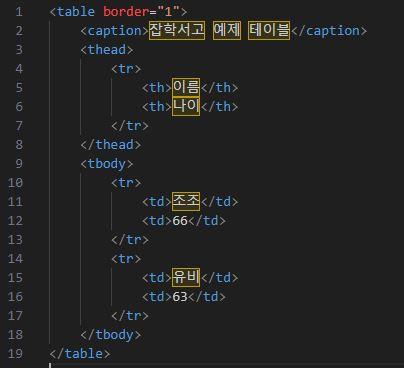 HTML Table Tag Example
▣ <table> - This is the basic tag that starts a table.
▣ <thead> - This tag groups the header section of a table and is optional.
▣ <tbody> - This tag groups the body section of a table and is mainly used together with <thead> or <tfoot>.
▣ <tfoot> - This tag groups the footer section of a table and is optional.
▣ <tr> - This tag defines a row in a table.
▣ <th> - This tag defines a header cell in a table, and the contents of this cell are displayed in bold by default.
▣ <td> - This tag defines a data cell in a table.
▣ <caption> - This tag provides a title or description for a table and must be placed immediately after the <table> tag.
Applying the example code produces a table roughly like the one below.
GK Library Example Table
| Name | Age |
| Cao Cao | 66 |
| Liu Bei | 63 |
This concludes the overview of HTML tags used to create websites. If you have a solid grasp of tags for documents, text, images, hyperlinks, and tables, you should have little trouble creating a basic website.
Of course, HTML is one of the most basic subjects in IT, but for people new to coding or web-related work, learning HTML first will help build a solid foundation.