
Monitors have become an essential tool in modern life, and for all kinds of work and entertainment it is important to choose the monitor and connection method that best fit your needs. There are many different connectors and ports used to connect a monitor, and depending on their features and uses, each can offer the best performance and convenience.
In this article, we will take a detailed look at the types and features of various monitor connectors and ports, a comparative analysis of the main ports, a guide to choosing the cables you need when connecting a monitor, and tips on using ports for the best monitor setup.
Types and Features of Monitor Connectors
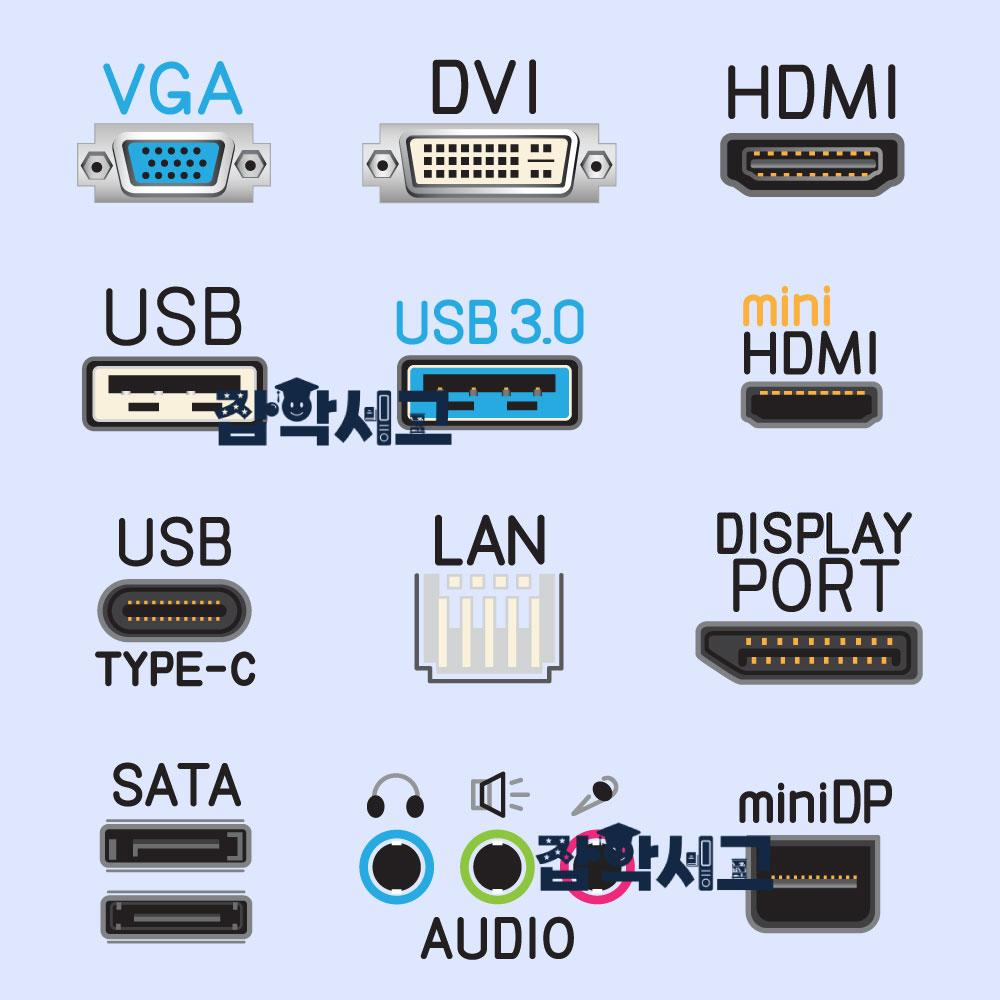 Types of ports for connecting to a monitor and graphics card
Monitor connectors come in various formats, and each connector has its own specific uses and features. The most commonly used connectors include HDMI, DisplayPort, DVI, and VGA. It is important to understand the basic functions and characteristics of these connectors.
What are connectors and ports?
A connector is a physical contact point that physically links two devices in order to carry electrical signals or data. There is a connector at each end of a monitor cable, and each connector plugs into a port on the computer and the monitor.
A port is a physical interface on a device into which a cable connector is plugged so that data can be sent and received. Both the monitor and the computer have ports into which cable connectors can be plugged.
So the monitor cable corresponds to the connector, and the contact point on the monitor or computer that the cable plugs into corresponds to the port.
HDMI (High-Definition Multimedia Interface)
HDMI stands for High-Definition Multimedia Interface, a connector that can carry digital video and audio signals at the same time. HDMI supports high-resolution, high-quality video and also carries audio, so you can connect devices easily with a single cable.
DisplayPort (DP)
DisplayPort (DP) is similar to HDMI, but it has the advantage of higher bandwidth and the ability to carry signals over longer distances. DisplayPort is mainly used to connect high-resolution monitors to graphics cards and is well suited to multi-monitor setups.
DVI (Digital Visual Interface)
DVI stands for Digital Visual Interface, a connector that carries digital video signals. DVI offers video quality similar to HDMI, but it does not carry audio. DVI is mainly used to connect older monitors and computers.
VGA (Video Graphics Array)
VGA stands for Video Graphics Array, a connector that carries analog video signals. VGA has lower picture quality than digital signal transmission, but it is still used in a lot of older equipment. Because VGA is not compatible with digital connectors such as DVI, you need to use a conversion adapter when necessary.
HDMI, DisplayPort (DP), and DVI: Comparing the Main Ports
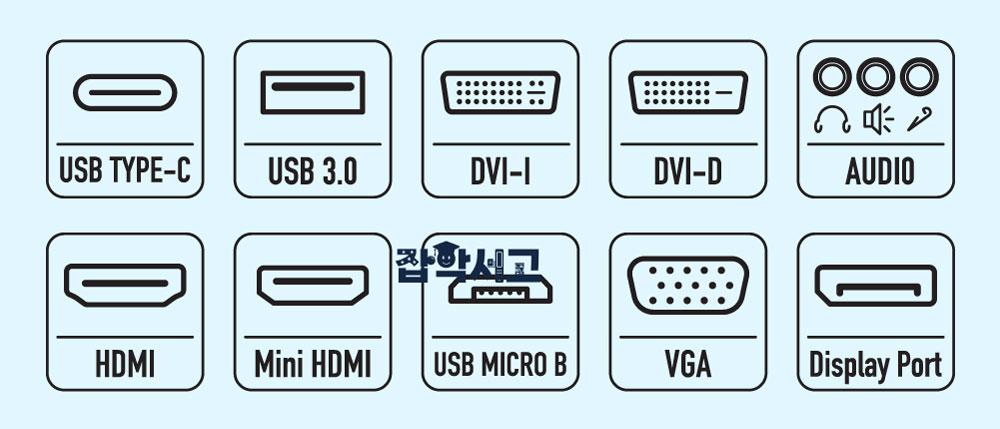 Another look at the types of ports
HDMI, DisplayPort, and DVI each have their own strengths and weaknesses, so it is important to compare them and choose the port that suits your intended use.
Strengths and features of HDMI
Looking at HDMI first, it is a connector that can carry digital video and audio signals at the same time. HDMI supports 4K resolution and HDR (High Dynamic Range), and the latest version, HDMI 2.1, supports up to 8K resolution. It also supports a wide range of audio formats, so it is highly compatible with home theater systems.
Strengths and features of DisplayPort (DP)
DisplayPort (DP) offers higher bandwidth than HDMI and supports 4K and 8K resolutions. DisplayPort 1.4 supports HDR and Dynamic Refresh Rate, and the latest version, DisplayPort 2.0, offers even higher bandwidth and resolution. Another advantage of DisplayPort is its multi-stream feature, which lets you connect several monitors from a single port.
Strengths and features of DVI
DVI is a connector that carries digital video signals and comes in two types, DVI-D and DVI-I. DVI-D carries only digital signals, while DVI-I can carry both digital and analog signals. DVI supports resolutions up to 1080p and delivers high-quality video, but it does not carry audio.
Why port choice matters
HDMI and DisplayPort are widely used to connect today's high-resolution monitors and graphics cards, and you should weigh the pros and cons of each when choosing. HDMI offers easy connection, broad compatibility, and high-quality audio transmission, while DisplayPort offers high bandwidth and multi-monitor connectivity.
The role of DVI and VGA
DVI is still used for compatibility with older equipment, but its features are limited compared with HDMI and DisplayPort. VGA is a connector that carries analog signals, so you need a conversion adapter to solve compatibility problems with digital connectors. It is important to understand exactly what each port does and what it is for, and to choose the best port for your setup.
A Guide to Choosing Cables (Connectors) for Connecting a Monitor
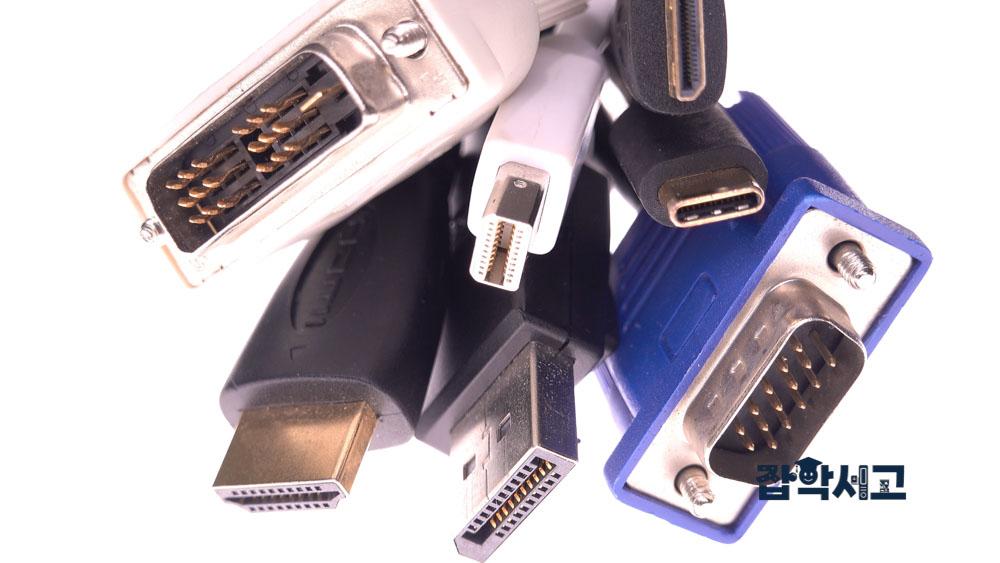 Various connectors (cables) used to connect a monitor and a computer
When connecting a monitor, it is very important to choose a cable that matches the connectors and ports. If you do not choose the right cable, signal transmission problems can occur and you may not get the best performance. Here is a guide to choosing the cables you need when connecting a monitor.
HDMI cables
First, HDMI cables are among the most common and widely used cables. HDMI cables come in various lengths and can carry high-resolution, high-quality video and audio signals. When choosing an HDMI cable, it is important to consider the length you need and to choose a high-quality cable. Choosing a cable that supports HDMI 2.0 or later lets you get 4K resolution and HDR.
DisplayPort (DP) cables
DisplayPort (DP) cables are mainly used to connect high-resolution monitors and graphics cards. DisplayPort cables offer higher bandwidth than HDMI and are well suited to multi-monitor setups. Choosing a cable that supports DisplayPort 1.4 or later lets you get 8K resolution and HDR. You should also take the cable's length and quality into account when choosing.
DVI cables
DVI cables are mainly used to connect older monitors and computers. There are DVI-D and DVI-I cables, which carry digital signals and both digital and analog signals, respectively. When choosing a DVI cable, check the connector types on the monitor and computer, and consider the length and quality you need.
VGA cables
A VGA cable carries analog video signals and is used to connect older monitors and computers. Because VGA cables are not compatible with digital connectors, you need to use a conversion adapter when necessary. When choosing a VGA cable, consider the length and quality you need.
Checking port and cable compatibility
Finally, it is important to check the compatibility of each port and cable. For example, if you use an HDMI 2.0 port, you should choose an HDMI 2.0 cable to get the best performance. Choosing a cable with the right length and quality also prevents signal transmission problems and lets you get the best performance.
Tips on Using Ports for the Best Monitor Setup
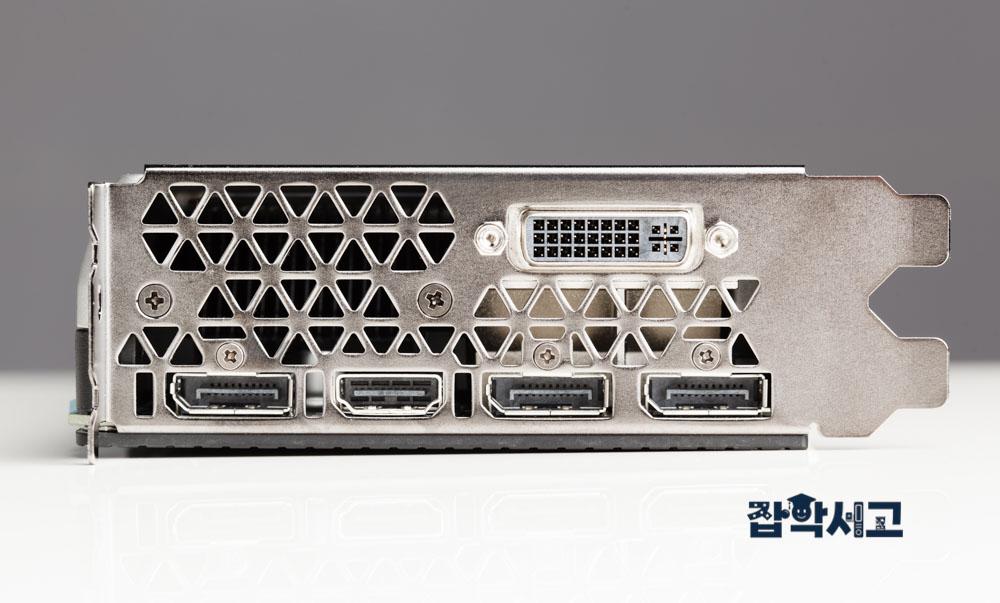 Ports on a computer (graphics card). If you use a discrete graphics card, plug the connector into a port on the graphics card.
To get the best performance from your monitor, it is important to use the ports correctly. Here are some tips on using ports for the best monitor setup.
Setting up multiple monitors
When setting up multiple monitors, it is a good idea to use DisplayPort's multi-stream feature. DisplayPort lets you connect several monitors from a single port, which makes it very useful for multi-monitor setups. In this case, it is important to connect them with high-quality DisplayPort cables.
Optimizing resolution and refresh rate settings
It is important to optimize your monitor's resolution and refresh rate settings. If you use an HDMI 2.1 or DisplayPort 1.4 or later port, choose a monitor that supports 4K resolution and a high refresh rate, and set the best resolution and refresh rate in your graphics card settings. This gives you sharper images and smoother screen transitions.
Carrying audio signals
If you want to carry audio signals as well, it is best to use an HDMI port. Because HDMI can carry video and audio signals at the same time, you can connect easily without a separate audio cable. Using a cable that supports the latest HDMI version also lets you enjoy high-quality audio.
Considering cable length and quality
When choosing a cable, measure the length you need accurately and choose one that is neither too long nor too short. Choosing a high-quality cable also helps minimize signal loss and maintain the best picture and sound quality. Low-quality cables can have a bad effect on the signal, especially when transmitting high-resolution video.
Understanding port characteristics and uses
It is important to understand exactly what each port is like and what it is for, and to choose the port that suits your setup. For example, if you mainly do high-resolution graphics work, DisplayPort is a good fit, while HDMI is a good choice if you mainly transmit ordinary video and audio.
Protecting and maintaining connectors
Be careful not to apply excessive force to the connector when plugging in a cable. A damaged connector can make the connection unstable and cause signal transmission problems. It is also a good idea to check the condition of your cables and connectors regularly and clean them so dust and debris do not build up.
In particular, a DP connector will not come out unless you press the button underneath it, so it is important to know this in advance. If you try to pull it out by force without knowing this, you can damage the connector or the port.
Using conversion adapters
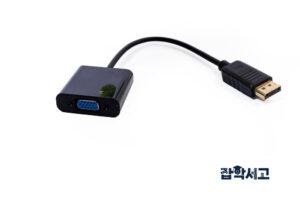 A conversion adapter (example image: VGA-DP)
If the connector types on the monitor and the graphics card differ, use a suitable conversion adapter. For example, if you need to connect a VGA connector and an HDMI connector, use a VGA-HDMI conversion adapter to ensure compatibility. It is best to choose a high-quality conversion adapter to minimize signal loss.
Organizing and managing cables
After connecting everything, it is important to tidy up the cables and arrange them neatly. Bundling cables with cable ties or clips keeps them from tangling and keeps things organized. Also leave some slack when installing them so the cables are not pulled too tight. This extends the life of the cables and avoids putting strain on the connectors.
Testing and optimizing the connection
Once all the connections are complete, turn on the monitor and computer and check that they work properly. Optimize display settings such as resolution, color, and refresh rate to maintain the best picture quality. When needed, it is also important to keep things up to date with driver or firmware updates.
There are many options for monitor connectors and ports, each with its own features and uses, and it is important to understand and use them properly. By comparing the main ports such as HDMI, DisplayPort, and DVI and following the guide to choosing the cables you need, you should be able to get the best performance.
In addition, applying the best monitor settings with the port tips can give you a sharper and smoother picture. I hope this article helps you better understand monitor connectors and ports and set up the best monitor environment.